
Deposits & Withdrawals
How to Buy Crypto With a Card on Binance: Fees, 3DS, and Failed Charges
Check card eligibility, quote and total cost, complete 3DS, verify the wallet credit, and handle declines, failed orders, or suspected duplicate charges.
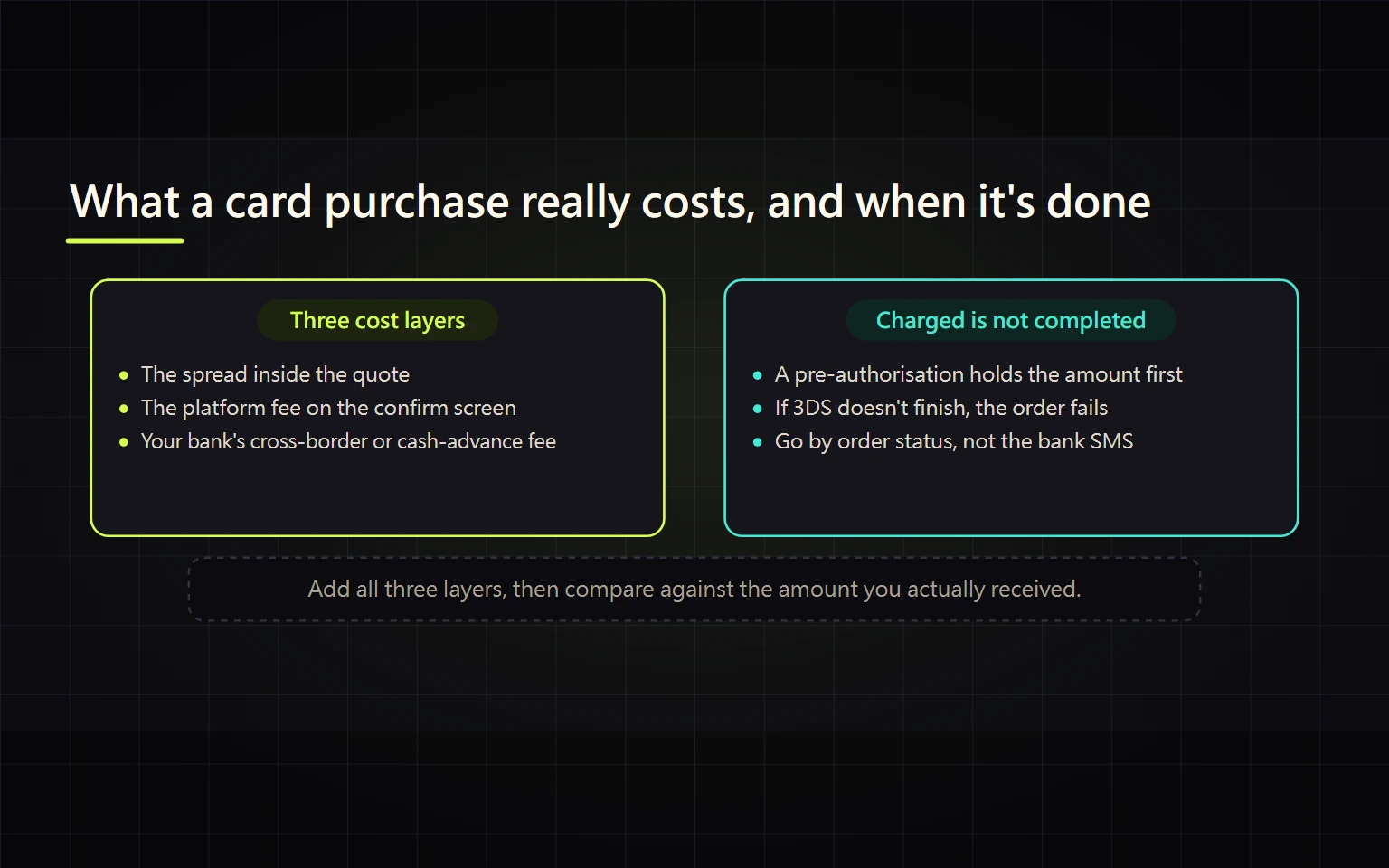
Buying crypto on Binance with a credit or debit card can look simpler than a bank transfer or an on-chain deposit, but the real cost and completion evidence are split across the Binance quote, displayed fees, bank authentication, card statement, order record, and wallet balance. A card charge alone does not prove that the order completed. A pending authorization also does not automatically mean a duplicate charge.
This guide is for a beginner using an eligible Visa or Mastercard issued in their own name. By the end, you should be able to verify regional availability, calculate the effective purchase cost from the confirmation screen, submit only once, and respond correctly to a decline, failed 3DS check, failed order with a charge, or suspected duplicate billing.
Verified on 2026-08-27. Payment methods, fiat currencies, assets, KYC requirements, limits, quotes, fees, 3DS, and bank handling vary by location, account, issuing country, and live risk controls. The checkout screen and your card issuer at the time of purchase are the sources of truth.
Contents
- Confirm that card purchases are available
- Prepare the account and set safety boundaries
- Buy crypto with a card step by step
- Review six fields before confirming
- Calculate the effective purchase cost
- Handle 3DS and bank authentication
- Find the order and purchased asset
- Troubleshoot a declined card or failed order
- Distinguish pending and duplicate charges
- Verify completion and use official sources
Confirm that card purchases are available
Card purchases are not permanently available for every location, fiat currency, asset, or card. Enter Binance through the official app or website, complete the identity verification currently required by the account, and inspect the payment methods shown under Buy Crypto.
Binance’s public Buy and Sell interface shows the spend and receive fields, but a public page cannot establish eligibility for your account; only the card option, currencies, limits, and terms displayed after the correct regional flow can be acted on.
Stop if: the account does not offer the card or fiat currency, the card is not in your name, the cardholder data conflicts with KYC, you would need to misstate your location or use another person's data, or the purchase depends on borrowing money you cannot repay.
Prepare the account and set safety boundaries
Complete this checklist first:
- Use the official Binance website or app and verify the domain or download source.
- Make sure the KYC name and residence information match the cardholder data.
- Use an unexpired card that can receive the issuer's app approval, 3DS, or OTP request.
- Ask the issuer whether crypto transactions may be classified as quasi-cash, cross-border, or foreign-currency activity.
- Set a maximum total spend, not just a target crypto amount.
- Use a small amount for the first purchase and avoid funds needed for bills or emergencies.
No support agent needs your full card number, CVV, online-banking password, SMS code, Binance 2FA code, cookies, or remote access. End the interaction if anyone requests them.
Buy crypto with a card step by step
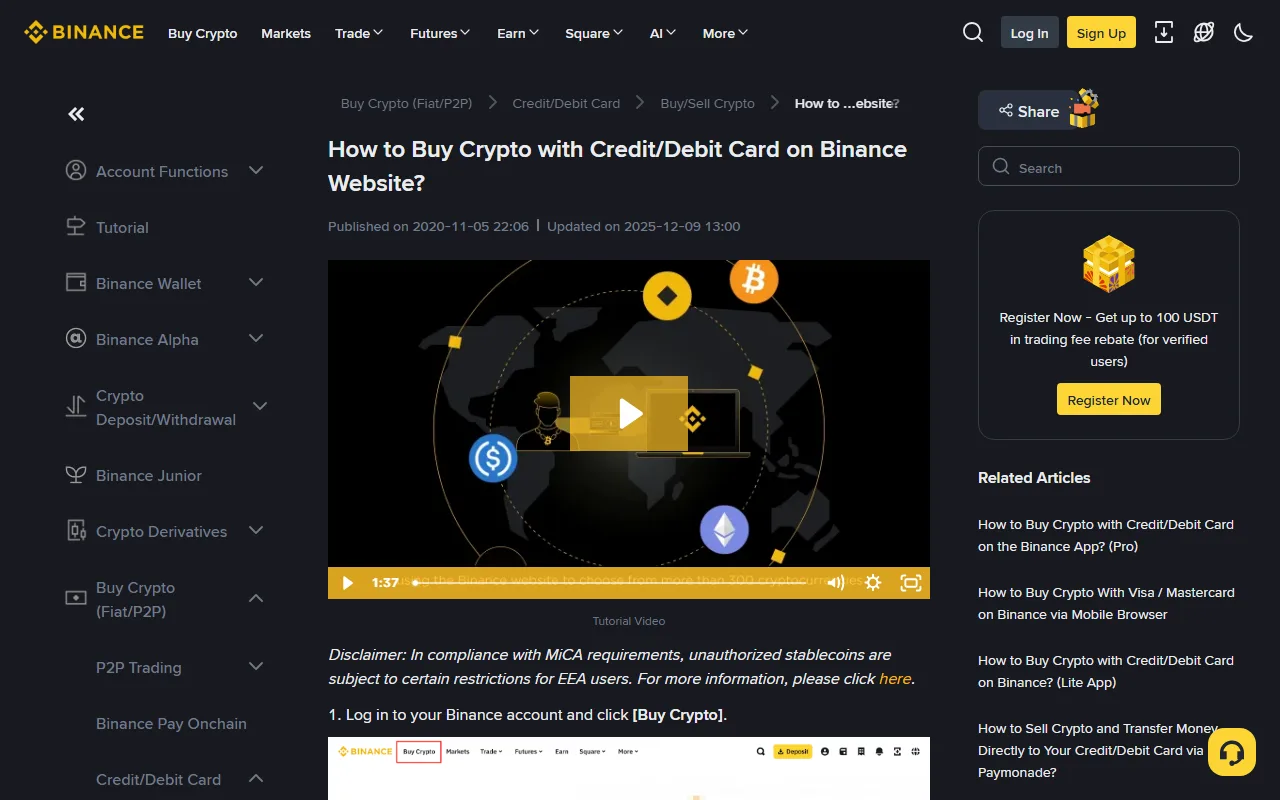
Real page capture: Binance’s official card-purchase support guide. Labels, currencies, and verification steps vary by region and account type.
- Sign in to Binance and open
Buy Crypto → Buy & Sell. - Select the fiat currency you will spend, the crypto asset you want to receive, and the amount.
- Choose the credit or debit card option. If the account does not show it, direct card buying is not currently available in that flow.
- Add an eligible Visa or Mastercard issued in your own name. Enter card details only in the official checkout.
- On the confirmation screen, review the total spend, receiving asset and amount, current quote or conversion rate, Binance-displayed fee, quote status, and expected wallet destination.
- If the issuer requests it, complete 3D Secure, an issuer-app approval, OTP, or another bank authentication step.
- Confirm once and wait for a clear Completed, Failed, or Expired result.
- Check
Buy & Sell → OrdersorHistory → Fiat Order, then verify the asset underWallet → Overview.
A browser spinner, redirect, or bank notification is not a reason to submit again immediately. Check the order record first so that one purchase intention does not become two separate orders.
Review six fields before confirming
| Field | Question to answer | Unsafe assumption |
|---|---|---|
| Spend currency | Does it match the card account currency? | Choosing USD guarantees no currency conversion |
| Total spend | What amount will Binance submit? | The typed amount is the issuer's final cost |
| Receive asset | Is the full asset name correct? | A similar ticker is the intended asset |
| Receive amount | How much crypto is expected? | A promotional fee label is enough for comparison |
| Quote and fees | What rate and Binance-displayed fee apply, and is the quote live? | Zero transaction fee means zero spread and zero bank fee |
| Destination | Which wallet should show the asset after completion? | Every purchase in every region always lands in Spot |
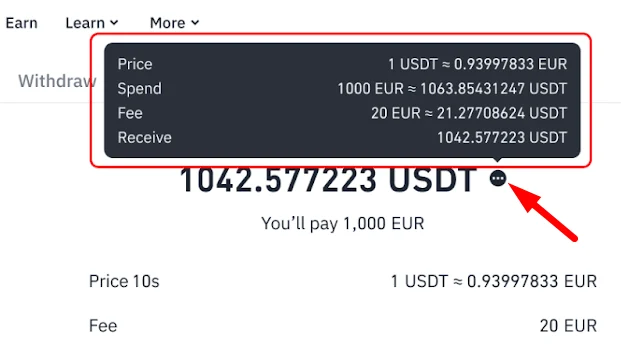
Real confirmation-screen image from Binance Academy’s 2026 guide. The 1,000 EUR spend, 20 EUR fee, and USDT amounts belong to that official example; they are not a current quote or fixed fee. Recheck Price, Spend, Fee, and Receive in your own live confirmation. This image does not prove that 3DS passed or that an order completed.
If you preserve the confirmation screen for reconciliation, redact the card number, name, balance, order identifiers, and any other sensitive data before sharing it with support.
Calculate the effective purchase cost
Do not compare only one fee percentage. Record two values:
Effective purchase price = final fiat amount posted by the bank ÷ crypto amount actually received
Total cost difference = effective purchase price − a comparable reference price at the same time
For example, suppose checkout shows a spend of 1,000 fiat units for 95 asset units. If the issuer later posts another 20 units as a currency-conversion or transaction-classification cost, the actual spend is 1,020 and the effective purchase price is 1,020 ÷ 95 ≈ 10.7368 fiat units per asset unit. Do not treat 20 ÷ 1,000 = 2% as the complete cost; the final reconciliation must use the actual total spend and net asset received. This is a calculation example, not a claim about Binance or any bank's current fee.
When comparing a card, bank transfer, and P2P, also record the total spend, net asset received, completion time, recovery route, and counterparty risk. The fastest method may not be the cheapest, and the cheapest advertised method may not be available or suitable for your account.
Handle 3DS and bank authentication
3D Secure, OTP, or issuer-app approval is controlled by the card issuer and does not appear in the same form for every transaction. Before approving, check the issuer domain or app, merchant amount, and currency. Never read an OTP to someone in a chat or phone call.
If authentication times out or fails:
- Return to Binance and inspect the original order status.
- If it is still Processing, do not submit another order.
- If it is clearly Failed or Expired, open the error details.
- Ask the issuer whether crypto, cross-border, or online transactions are blocked.
- Check the cardholder name, billing information, limit, and card status.
- Create one new order only after the original state is unambiguous.
The absence of an OTP does not justify giving card details to a person claiming to “approve” the payment manually.
Find the order and purchased asset
After checkout, find the order under Buy & Sell → Orders or History → Fiat Order. Compare the asset, quantity, spend currency, total, time, and status with the confirmation screen. Then use Wallet → Overview and the destination named by the order to locate the asset.
Do not assume that every regional or product flow credits the Spot Wallet. If the total asset is visible but Spot trading reports an insufficient balance, first determine which Binance wallet holds it and whether an internal transfer is required.
The completion test is not “my bank shows a charge.” It is: the Binance order is Completed, its fields match the confirmation, and Wallet Overview contains the corresponding asset and amount.
Troubleshoot a declined card or failed order
Possible causes include regional or issuing-country restrictions, a mismatch between KYC and cardholder data, failed 3DS, issuer risk controls, insufficient limit, an expired card, network interruption, or a Binance restriction. Use the order's error details instead of guessing.
Failed order with no bank charge
Preserve the error, then check KYC, cardholder name, card status, limit, and issuer restrictions. Retry only after the original order has ended and the cause is understood, or select another lawful payment method currently offered by the account.
Processing or unclear order state
Stop resubmitting. Sign in again, open the order record, preserve the time and order ID, and wait for a status update or use the Inquiry option attached to that order.
Completed order but no visible asset
Check Wallet Overview and the destination specified by the order, then look for an internal wallet transfer requirement. If the records still disagree, open an Inquiry from the order instead of making another purchase as a test.
Distinguish pending and duplicate charges
Two lines in a banking app do not necessarily mean two final charges. Separate three cases.
Pending authorization
The issuer may show a pending hold before final posting. A pending item is not yet proof of a settled duplicate. Release timing depends on the payment route and issuer, so do not promise a fixed refund period and do not immediately retry because the item is pending.
Two completed Binance orders
If Binance shows two different order IDs and both are Completed, two purchases were submitted. Verify whether both crypto amounts arrived, then contact Binance and the issuer about the available handling for each transaction. Do not assume a completed crypto purchase can simply be reversed.
One completed order and two posted bank charges
If Binance has only one Completed order but the bank has two settled, non-pending charges, stop placing orders. Prepare the order ID, time, amount, currency, and a statement image with the full card number and personal data redacted. Open Fiat Order → [i] → Unable to Process or Inquiry and ask the issuer to investigate the second posted charge.
Never post an unredacted statement, full card number, CVV, or OTP in a public community.
Verify completion and use official sources
Treat the card purchase as complete only when:
- the Binance order status is Completed;
- the spend currency, total, receive asset, and quantity match the confirmation screen;
- Wallet Overview shows the asset in the destination identified by the order;
- every posted bank charge maps to a successful order;
- there is no unexplained second settled charge;
- the order ID, time, fee evidence, and issuer record are preserved with sensitive data redacted.
Official sources:
- Buy Crypto With a Credit or Debit Card on the Binance Website
- Binance Beginner's Guide
- Binance Identity Verification Guide
- Binance Risk Warning
Risk notice: crypto prices can move sharply. A card purchase may involve the Binance quote, a displayed transaction fee, foreign-exchange conversion, quasi-cash classification, or other issuer charges. This guide is general educational information, not investment, legal, tax, or credit advice. Use the actual account and local rules at checkout.