
Trading Basics
Binance Spot Trading Interface Guide: Pairs, Order Book, Orders, and Fills
Identify the Binance Spot page, read pairs and order-book depth, locate the order panel and histories, place a small order, and verify its fills and fees.
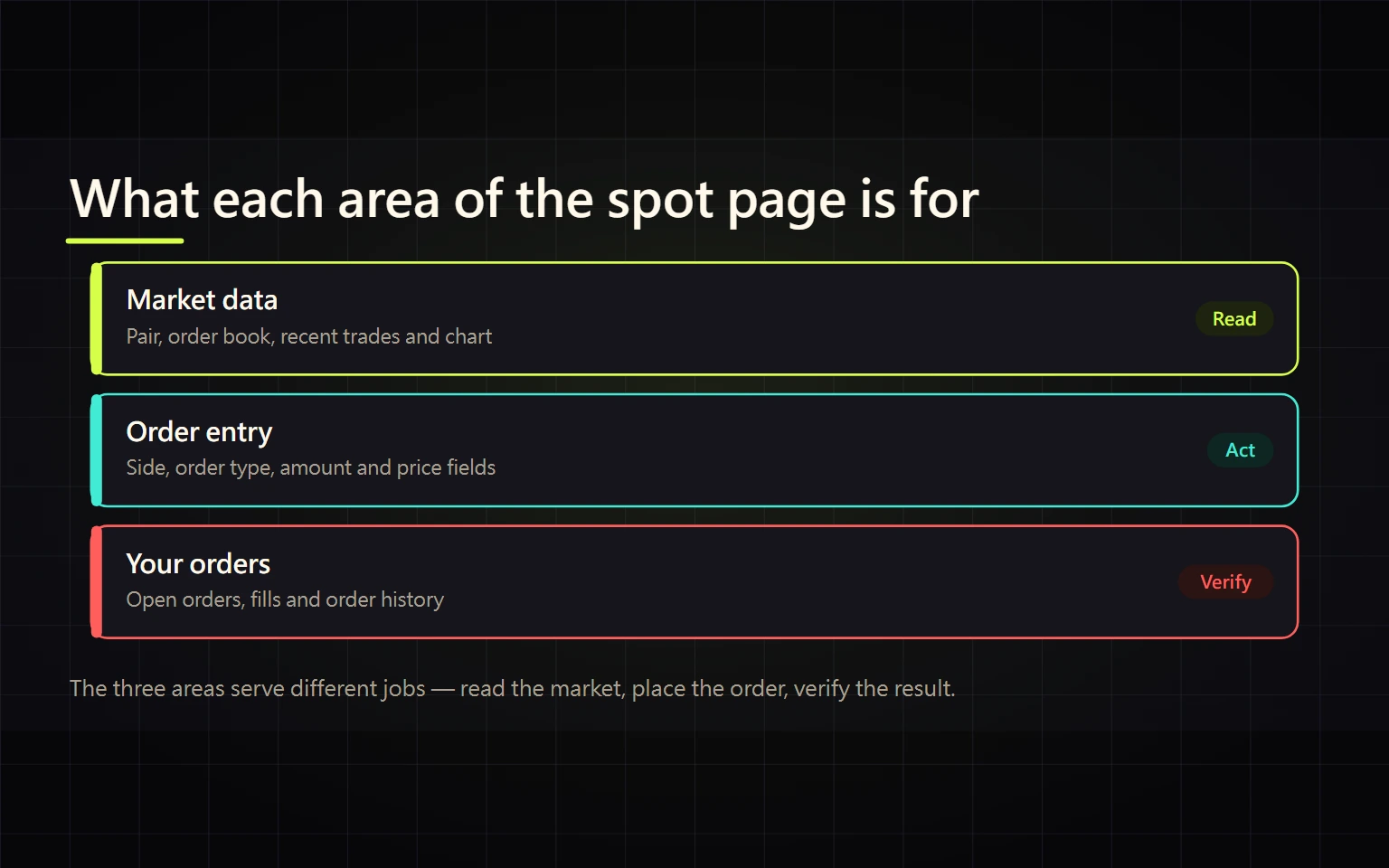
The hardest part of a first Binance Spot screen is usually not the candlestick chart. It is confirming the product, selecting the complete pair, and distinguishing a submitted order from an executed trade. Market data, order controls, and personal records occupy the same screen but prove different things.
This guide is for a first web or professional-mode app Spot trade. By the end, you should be able to distinguish Spot from Margin or Futures, explain BTC/USDT, locate six core areas, and verify an order with its status, filled quantity, average price, commission, and balance change.
Verified on 2026-08-27. Navigation, layout, pairs, order types, trading filters, and eligibility vary by region, account, and product version. Prices and quantities in screenshots are capture-time market data, not a quote or recommendation. The signed-in interface is the source of truth.
Contents
- Confirm that the product is Spot
- Read the complete trading pair
- Locate six core areas
- Separate order book chart and recent trades
- Check balances and live trading filters
- Complete a small first-order workflow
- Verify the order by status
- Troubleshoot zero balance and rejected orders
- Use the completion checklist
- Official sources and stop conditions
Confirm that the product is Spot
On the web, the common route is Trade → Spot. App navigation varies with version and Lite or Pro mode. Do not rely on the selected symbol alone; the product label must explicitly identify Spot.
| Product | Defining signals | Beginner stop condition |
|---|---|---|
| Spot | Trades assets already available in the account without a loan or derivative position | This guide applies |
| Margin | May show Cross, Isolated, Borrow, interest, collateral, or margin level | Stop until borrowing and liquidation are understood |
| Futures | Shows leverage, mark price, margin, positions, or funding rate | Return to Spot; this guide does not apply |
Spot avoids loan-based liquidation mechanics, but the asset can still lose substantial value. Stop if the page asks for leverage, presents a Position instead of a simple asset balance, or leaves the product identity unclear.
Read the complete trading pair
In BTC/USDT, BTC is the base asset and USDT is the quote asset. Say the transaction as a complete sentence:
- Buy BTC/USDT: spend USDT and receive BTC.
- Sell BTC/USDT: deliver BTC and receive USDT.
- The displayed price is the amount of USDT per one BTC.
Check both tickers. BTC/USDT, BTC/USDC, and a leveraged token are not interchangeable markets. They can have different balances, depth, prices, eligibility, and trading filters.
Before submission, say: “I will spend this amount of USDT to buy BTC,” or “I will sell this amount of BTC to receive USDT.” Stop when that sentence conflicts with the Buy or Sell control or with the unit beside the input.
Rehearse direction and input units with hypothetical numbers
Assume solely for the field exercise that 1 BTC = 80,000 USDT. This is not a live price and excludes commission and slippage:
| Objective | Direction and input | Expected pre-submit estimate |
|---|---|---|
| Spend 100 USDT to buy BTC | Select Buy on BTC/USDT; if the market-buy field requests Total or quote spending, enter 100 USDT | 100 ÷ 80,000 = 0.00125 BTC before fees |
| Sell 0.00125 BTC for USDT | Select Sell on BTC/USDT; enter 0.00125 BTC in Amount or quantity | 0.00125 × 80,000 = 100 USDT before fees |
| Place a limit buy for 0.00125 BTC with a maximum price of 79,000 USDT/BTC | Enter 79,000 in Price and 0.00125 BTC in Amount | Notional 79,000 × 0.00125 = 98.75 USDT; execution is not guaranteed |
When the interface switches between quote spending and base quantity, the input unit changes with it. Reconcile every estimate with available balance, minimum notional, commission, and the live confirmation. Stop when the button direction conflicts with the complete transaction sentence.
Locate six core areas
A public Spot page shows the pair, order book, chart, order tabs, market list, and market trades, but no signed-in balance or personal order. Market values continue to change.
- Pair and market header: confirms the base and quote assets, product, and 24-hour market data.
- Order book: displays resting asks and bids with prices and quantities. Color and row order can be customized.
- Price chart: visualizes historical trades over a selected interval. It does not guarantee the next fill.
- Market trades: shows trades that have occurred. My Trades becomes personal evidence only when signed in.
- Order panel: selects Limit, Market, or another order type available to that account and pair.
- Open Orders, Order History, and Trade History: establish whether the order is resting, partially filled, filled, canceled, rejected, or expired.
When signed in, distinguish total from available balance. A positive total with a lower available amount often means another open order or product is reserving the asset.
Separate order book chart and recent trades
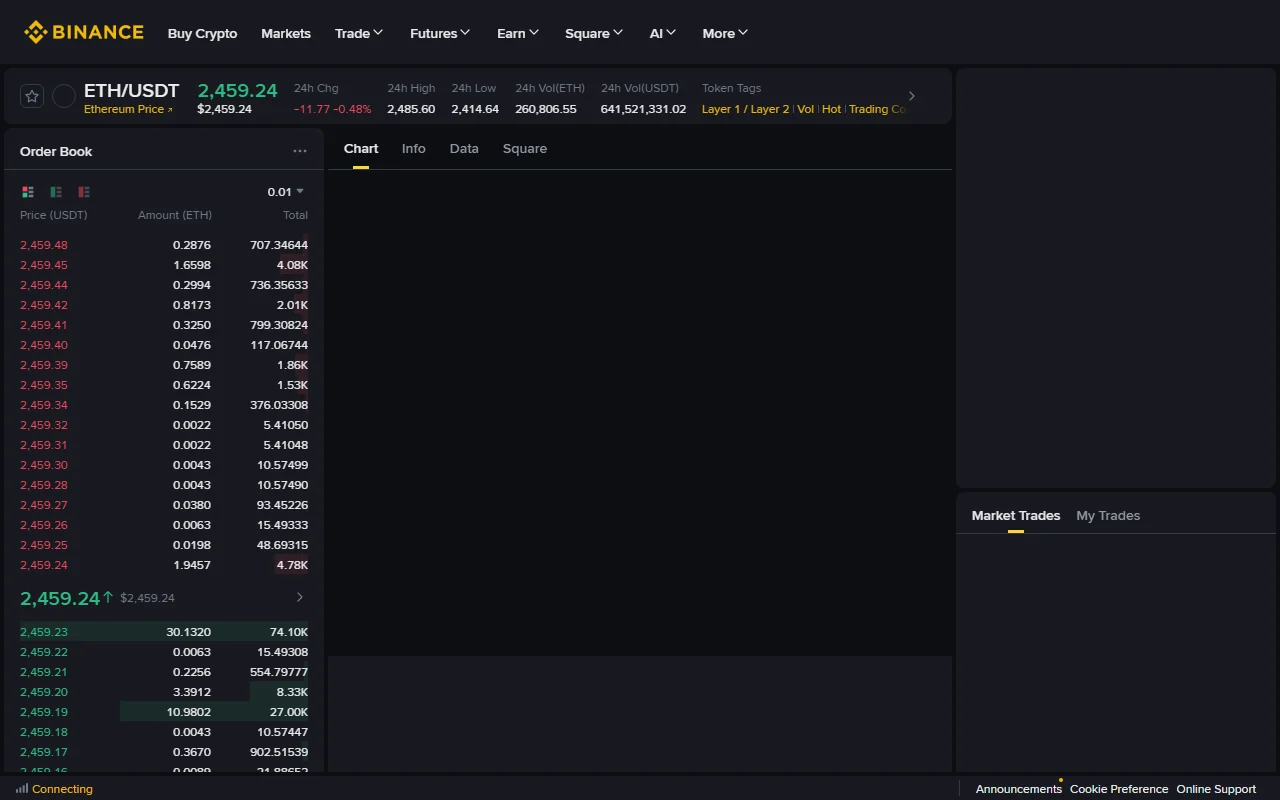
The highest bid and lowest ask are the current best prices on the two sides of the book. A market buy generally starts with the lowest ask; a market sell starts with the highest bid. If the first level is too small, matching continues at later levels, so the average execution price can differ from one displayed price.
The chart and recent-trade list show what already happened. They do not guarantee the next execution or prove that a larger order can fill at one level. The order book is live as well; visible liquidity may be changed or canceled before submission.
Before ordering, inspect the best bid and ask, quantities near those levels, the intended notional, and your acceptable price boundary. Use the market-versus-limit order guide to select the control, and the fees, spread, and slippage guide to reconcile total cost.
Check balances and live trading filters
Each pair has live filters such as price tick size, quantity step size, minimum quantity, minimum notional, and market-order constraints. Values can change, so an old tutorial should not be treated as the rule for a current order. Read the live field prompt or official Trading Parameters page.
Check all seven before submission:
- The product is Spot and the complete pair is correct.
- Buy or Sell matches the full transaction sentence.
- The input unit is understood as base quantity or quote spending.
- The needed asset is available in Spot and not reserved elsewhere.
- Price and quantity satisfy live precision, step, and minimum rules.
- Estimated spending, receipt, and applicable commission are acceptable.
- The pair is not suspended or unavailable for the account or region.
If the balance is in Funding, Earn, or another location, use the Spot, Funding, and Binance Wallet guide for an internal transfer. A normal internal transfer does not request a blockchain network and address; those fields indicate a withdrawal flow.
Complete a small first-order workflow
- Enter through the official site or app and confirm the Spot label.
- Search the complete pair; identify the base, quote, and direction.
- Inspect the best bid and ask, spread, and depth near the planned size.
- Check Spot available balance and the current trading filters.
- Select Market when speed is the priority or Limit when a price boundary is required.
- Use a small amount that cannot affect essential finances. Recheck direction, price, quantity, unit, and estimate.
- Submit once and preserve the order number and first reported state.
- Inspect Open Orders, Order History, and Trade History for the actual outcome.
- For a fill, record filled quantity, weighted average price, commission amount, and commission asset.
- Reconcile the base and quote balances, and confirm that no unintended open remainder exists.
The submit control creates a request; it does not prove a complete fill. Do not click repeatedly or use a larger second trade while status is unclear.
Verify the order by status
| Status | Meaning | Required decision |
|---|---|---|
| NEW or Open | Accepted but not fully filled | Explicitly wait or cancel; remember the reserved balance |
| PARTIALLY_FILLED | Some quantity executed and a remainder exists | The fill cannot be undone; wait for or cancel only the remainder |
| FILLED | Full requested quantity executed | Reconcile average price, quantity, commission, and balances |
| CANCELED | The unfilled remainder was canceled | Check for earlier partial fills before creating another order |
| REJECTED | The order was not accepted | Check balance, filters, permissions, and pair status |
| EXPIRED or EXPIRED_IN_MATCH | The system ended an uncompleted portion under its validity or matching rules | Determine the executed quantity before considering a replacement |
Use Order History and Trade History as evidence, not a toast, chart, or portfolio estimate. A limit order that crosses available liquidity can execute immediately and act as a taker. Limit does not automatically mean maker.
Troubleshoot zero balance and rejected orders
- Spot available balance is zero: inspect Funding, Earn, or another account, then check whether Open Orders reserve the asset.
- Balance exists but is insufficient: verify the pair and input unit. Buying BTC/USDT needs available USDT; selling needs available BTC.
- Invalid price or quantity: read tick size, step size, minimum quantity, and minimum notional, then use the precision permitted by the live page.
- Pair unavailable: check suspension, delisting, location, and account restrictions. Do not move to Margin or Futures merely to find the same ticker.
- No visible fill after submission: inspect Open Orders, Order History, and Trade History together. Do not resubmit while the state is unknown.
- Unexpected balance change: check whether the order partially filled and which asset paid the commission.
Preserve the error, order number, time, pair, and non-sensitive fill data. Before sharing a screenshot with official support, hide names, full email or phone, account identifiers, API keys, cookies, tokens, and unrelated portfolio values.
Use the completion checklist
- I can prove the product is Spot rather than Margin or Futures.
- I can explain the pair and direction in a complete sentence.
- I know what the order book, chart, order panel, and personal histories can prove.
- I checked Spot available balance and current trading filters.
- The final state is known; any open or partially filled remainder has an explicit wait or cancel decision.
- If filled, Trade History shows actual quantity, average price, commission, and commission asset.
- Base and quote balance changes reconcile, with no unintended Open Order.
Only then is the first Spot operation complete and verifiable. Next, use the market-versus-limit guide to choose order behavior and the cost guide to measure execution.
Official sources and stop conditions
- Binance Academy: Your Guide to Binance Spot Trading
- Binance Academy: What Is an Order Book?
- Binance Spot Trading Parameters
- Binance Spot API order-status definitions
Stop immediately if the product cannot be confirmed, the pair or direction is unclear, the page asks for borrowing, leverage, or margin, an unknown state is about to be duplicated, or anyone asks for a verification code, API key, or screen control. This guide is general education, not investment, legal, or tax advice.