
Assets & Risk
Where Are My Funds on Binance? Spot, Funding, and Binance Wallet Explained
Find a missing balance, choose Spot or Funding for the next task, complete an internal transfer, and recognize when Binance Wallet requires an on-chain withdrawal.
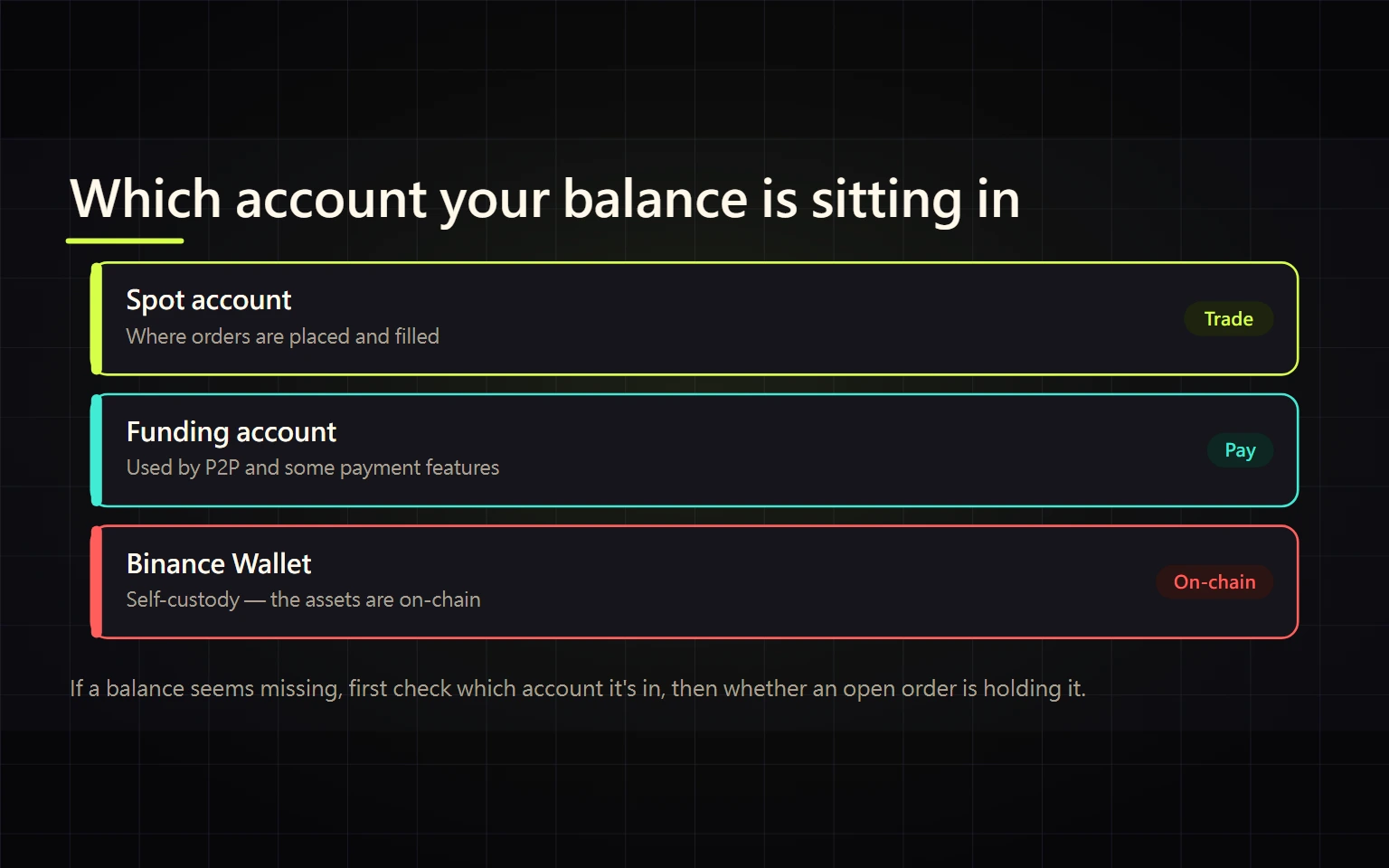
Seeing a zero Spot balance does not necessarily mean your crypto is gone. On Binance, the same asset may sit in a Spot Account, Funding Account, an Earn or other product balance, or the separate self-custody product now called Binance Wallet.
This guide helps you do three practical things: identify where the asset is, complete an internal transfer, and recognize when you are about to make an on-chain transaction instead. Labels and availability can vary by region, app mode, and product version, so treat the live confirmation screen as the final authority.
Table of contents
- Choose the account by what you want to do
- Spot Funding and Binance Wallet are different
- Find a balance that appears to be missing
- Make an internal transfer
- Verify that the transfer is complete
- Prepare Binance Wallet before funding it
- Move exchange assets to Binance Wallet
- Troubleshoot and know when to stop
- Completion checklist
- Official sources and verification date
Choose the account by what you want to do
Start with the next task, not with the word “wallet.”
| Your next task | Where to look first | Useful completion signal |
|---|---|---|
| Place a BTC/USDT or other spot order | Spot Account | The order asset appears as an available balance |
| Buy or sell through P2P | Funding Account | The asset is selectable on the P2P order screen |
| Use Binance Pay or another payment feature | Often the Funding Account | The asset appears on the payment confirmation screen; availability is regional |
| Use Earn, staking, margin, or another product | That product’s balance | The position and any redemption status are visible |
| Use a DApp or manage assets on-chain | Binance Wallet, formerly Binance Web3 Wallet | The correct network balance is visible and recovery setup is complete |
These are common routes, not permanent platform guarantees. Binance may reorganize its asset pages or regional products. The live transaction screen must show the correct source account and available balance before you proceed.
Spot Funding and Binance Wallet are different
Spot Account
The Spot Account is primarily for spot trading. A balance can be present but unavailable when it is reserved by an open order or another process. Deposit and withdrawal controls may be presented from a consolidated Assets page, so do not rely on an old menu path alone.
Funding Account
The Funding Account commonly supports P2P and some Pay-related activity. Crypto bought through P2P may arrive here first. If you want to trade it on Spot, you will usually need an internal transfer from Funding to Spot. Product support and settlement behavior vary by region and version.
Binance Wallet
Binance Wallet is a self-custody, on-chain product for DApps and blockchain activity. It is not another tab inside your custodial Spot balance. Its mobile and web products can use different security, backup, and signing designs. Follow the recovery instructions shown by the version you actually use instead of assuming every interface uses the same MPC or backup process.
Find a balance that appears to be missing
Use this order of operations:
- Search the Assets overview for the full asset name and ticker. Check that you did not select a similarly named or wrapped token.
- Review Spot, Funding, Earn or other yield products, Margin, Futures, and any other product you actually used.
- Compare total and available balances. If total is positive but available is zero, look for open orders, subscriptions, redemptions, holds, or pending withdrawals.
- Review recent trades, internal transfers, P2P orders, deposits, and withdrawals. Match the asset, amount, status, and destination account.
- If the asset was moved into Binance Wallet or another external wallet, switch to the relevant blockchain address and transaction ID. A custodial exchange account will not automatically display that self-custody balance.
If you see an unknown device, transfer, or withdrawal, stop moving funds and follow the account security checklist before doing anything else.
Make an internal transfer
The internal Transfer control sits in the Assets area. Menus may move as the product changes, so follow what your own screen shows rather than a fixed path.
For example, to move USDT received through P2P from Funding to Spot:
- Open Assets and choose Transfer.
- Set From to Funding and To to Spot. Use the direction switch if they are reversed.
- Select USDT and verify the available amount.
- Enter the amount. A small first transfer can help you verify the account path.
- Read the source, destination, asset, and amount one more time, then confirm.
An internal account transfer normally does not ask for a blockchain address, network, Memo/Tag, or transaction ID. If the screen requests those details or shows a network fee, stop: you have entered an on-chain withdrawal flow, not a routine internal transfer.
Verify that the transfer is complete
Pressing Confirm is only a submission event. Use both of these checks:
- The destination account’s available balance has increased.
- Transfer or transaction history contains the matching asset, amount, direction, and successful status.
If the source balance decreases while the destination has not updated, refresh and read the transfer status before submitting anything again. Do not search a block explorer for a normal internal transfer because it does not have an on-chain transaction ID.
Prepare Binance Wallet before funding it
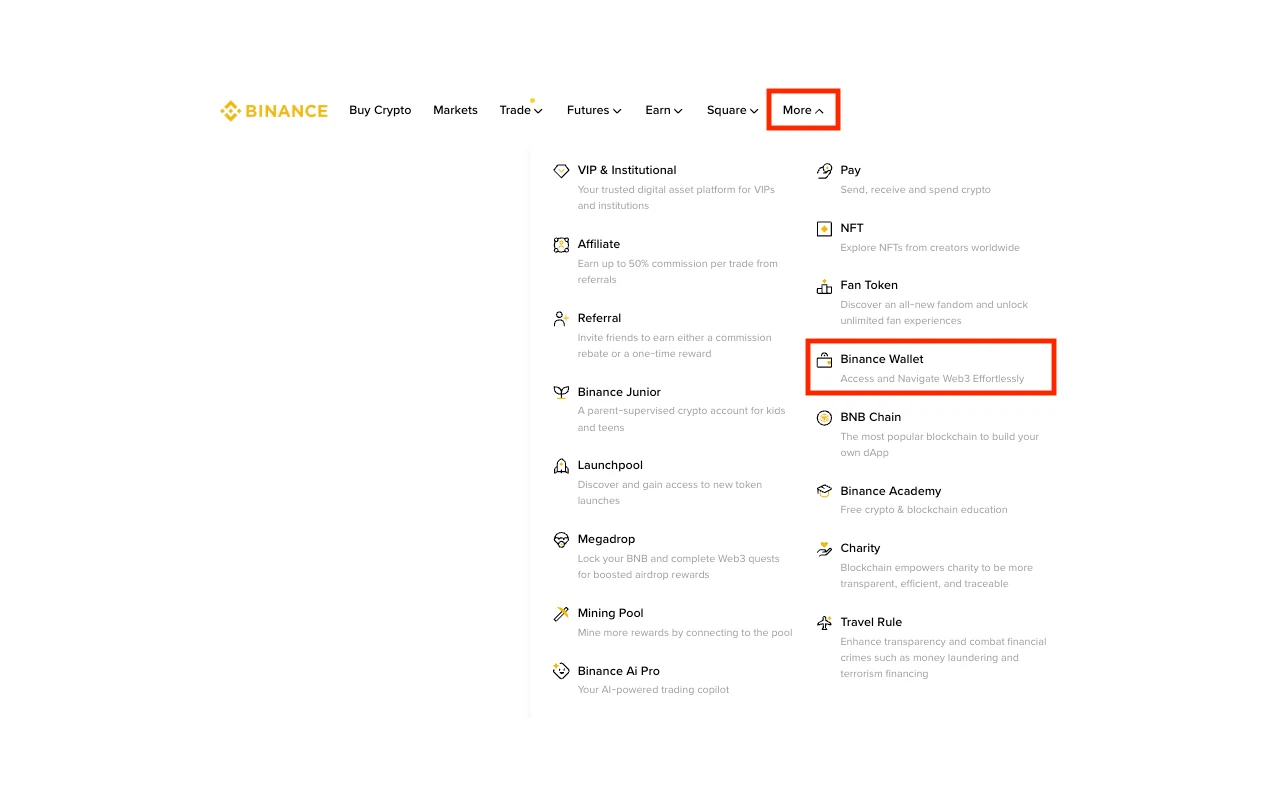
Source: a real interface screenshot from the official Binance Academy guide. Location and availability can differ by region and product version.
Binance Wallet, formerly Binance Web3 Wallet, is designed for people who need on-chain asset management or DApps. A new user does not need to activate it merely because it sounds more like a traditional crypto wallet. If you do need it:
- Enter only through the official Binance app or website, not a search ad, direct message, or unknown QR code.
- Follow the creation or import flow for your exact mobile or web product.
- Complete and test the recovery preparation before depositing a meaningful amount.
- Identify the target network and its native gas asset. Receiving a token without gas can leave you unable to move it or revoke an approval.
- Verify the domain, contract, and permission scope before connecting a DApp.
No legitimate support agent needs your seed phrase, private key, recovery password, full key material, password, or 2FA code.
Move exchange assets to Binance Wallet
Moving crypto from a custodial Binance account to Binance Wallet is generally an on-chain withdrawal, not a free relabeling between internal accounts.
- In Binance Wallet, select the correct asset and network and obtain a fresh receiving address.
- In the exchange Assets area, start a crypto withdrawal for the same asset and network.
- Paste the address and compare the beginning and end. Include a Memo/Tag if the receiving screen requires one.
- Review the minimum, network fee, and net amount. Make a test withdrawal that satisfies both platforms’ minimums.
- Track the transaction ID on the correct block explorer, then verify that the wallet shows an available balance.
Use the crypto deposit guide for the reverse direction. Before sending funds out, follow the crypto withdrawal guide for address controls, test withdrawals, and status handling.
Troubleshoot and know when to stop
| Situation | Check first | Next action |
|---|---|---|
| P2P purchase completed but Spot is zero | Funding balance and P2P order status | Transfer Funding to Spot after the order is complete |
| Total exists but available is zero | Open orders, yield products, holds, pending withdrawals | Release or complete the existing process; do not add more funds blindly |
| Internal transfer went the wrong way | From/To and transfer history | Create a new correctly directed transfer if the balance is available |
| The form asks for address and network | Whether you entered Withdraw or Send | Stop and restart with the on-chain checklist |
| Binance Wallet shows crypto but it cannot move | Network, gas, pending transactions, DApp approvals | Resolve the network or gas issue; do not send across an unsupported network |
| Unknown transfer or withdrawal appears | Devices, APIs, 2FA, email, withdrawal history | Enter the account-compromise process and contact official support |
Stop whenever the asset, source, destination, address, network, or recovery method is unclear. Treat requests for remote access, screen sharing, a seed phrase, or an “unlock fee” as high-risk fraud.
Completion checklist
- I can identify whether the asset is in Spot, Funding, another product, or Binance Wallet.
- For an internal transfer, I verified From, To, asset, amount, and destination available balance.
- Transfer history shows success, and I did not mistake an internal record for a blockchain transaction ID.
- If I use Binance Wallet, I completed the recovery preparation required by my current product version.
- If assets will cross into Binance Wallet, I switched to the on-chain withdrawal checklist and will test the route first.
- I did not share credentials, 2FA, seed phrases, private keys, recovery passwords, or key material.
When all six are true, you have not merely found a menu—you know where the asset is, how to make it usable, and when to stop.
Official sources and verification date
This article was verified on 2026-08-27 (UTC+8) against:
- Binance Support: internal Spot and Funding transfer interface
- Binance Academy: What Is the Binance Wallet and How to Use It?
- Binance Academy: What Is Binance P2P and How to Use It?
- Binance Academy: Custodial vs. Non-Custodial Wallets
Risk note: Crypto assets and on-chain actions carry market, technical, fraud, and irreversibility risks. This operational guide is general education, not investment, legal, or tax advice. Follow the live rules for your region and account.