
Account & Security
Binance Account Security Checklist: Passkeys, 2FA, Phishing, Withdrawals
Secure a Binance account with unique credentials, passkeys or authenticator 2FA, anti-phishing codes, device reviews, and withdrawal controls.
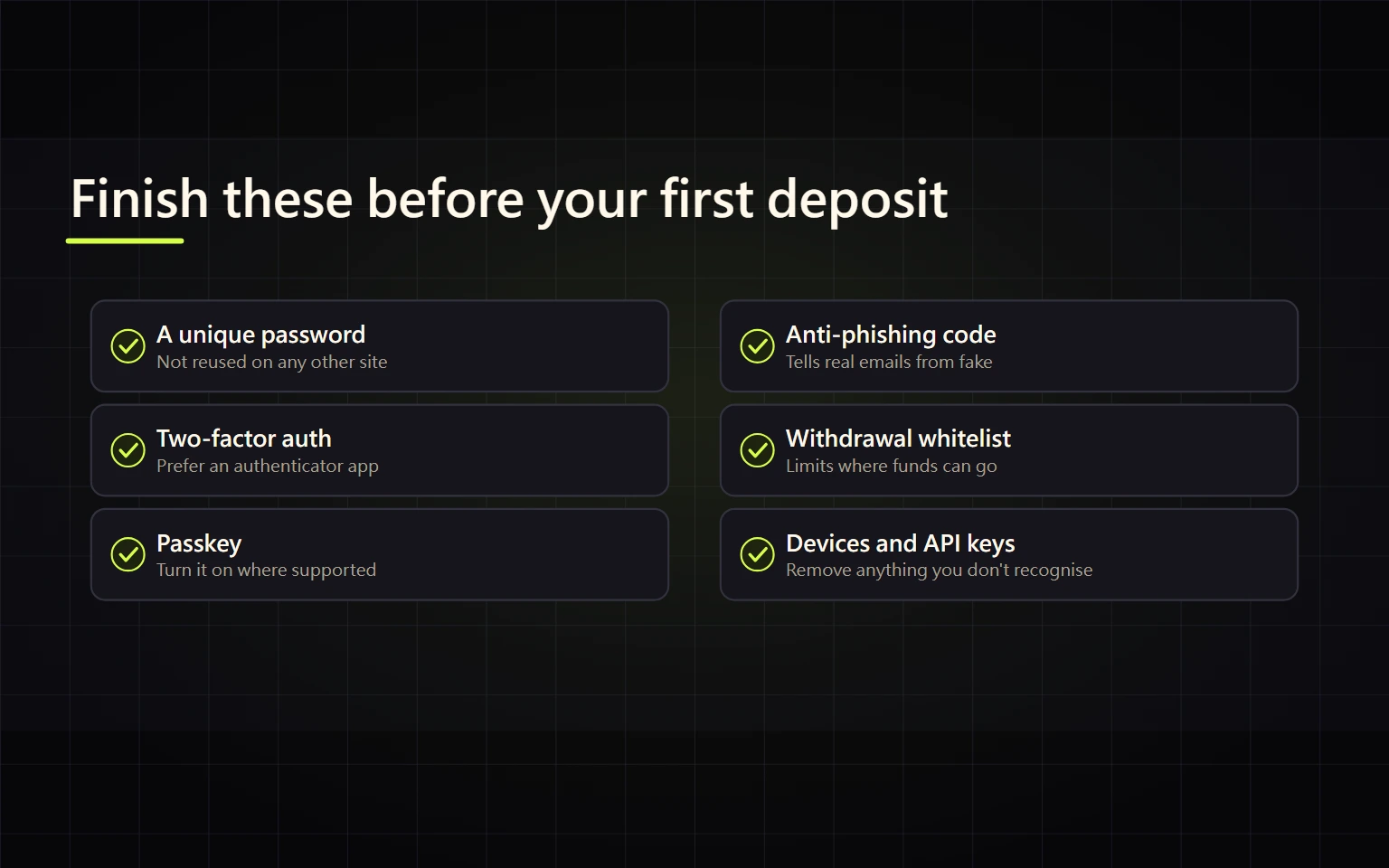
Features and labels can vary by app, browser, device, and region. Use the list below for comparison; your Account → Security page is the operational source of truth.
This guide is for a new account, an account that still relies on SMS, or a user performing a periodic security review. Completion does not mean “2FA is on.” It means several independent controls are in place: a leaked password is not enough to sign in, a stolen session is not enough to withdraw easily, and you can contain an incident from a clean device.
If you already see an unknown login, passkey, API key, withdrawal address, or withdrawal: skip the routine setup. From a clean device, open the bookmarked official site, secure the registered email, remove unknown devices, and change the password. If compromise is confirmed, follow Binance's official Disable Account and support process. Never transfer funds, share a screen, or provide a code to a supposed support agent.
Contents
- What completion means
- Step 1 Secure the password and registered email
- Step 2 Choose a passkey or authenticator
- Step 3 Store recovery material safely
- Step 4 Enable an anti-phishing code
- Step 5 Review devices and activity
- Step 6 Constrain withdrawals and API access
- Incident and lost-device paths
- Completion checklist
What completion means
| Threat | Minimum control | Verification |
|---|---|---|
| Reused or stolen password | Unique password plus strong authentication | Security shows a passkey or authenticator enabled |
| Fake login page or message | Bookmark, passkey, anti-phishing code | Code is enabled, but email links are still not trusted |
| Old phone or session abuse | Device and login review | No unknown device or IP remains authorized |
| Withdrawal or API abuse | Address controls and least privilege | No idle API key; fixed-address users evaluated a whitelist |
| Lost phone | Independent recovery path | Recovery material is not stored only on that phone |
No single feature guarantees that the account cannot be compromised. Confirm every state on your own Security page.
Step 1 Secure the password and registered email
Give Binance a long, unique password stored in a trusted password manager. Do not reuse the password for email, banking, social media, or another exchange. Protect the registered email with its own unique password and strong 2FA because security notifications and recovery can depend on it.
Review email sessions, recovery contacts, and forwarding rules. An attacker may add a rule that keeps sending verification messages elsewhere after the obvious session is closed. Routine forced password changes can lead to weaker choices, but any suspected exposure calls for an immediate change from a clean device.
Step 2 Choose a passkey or authenticator
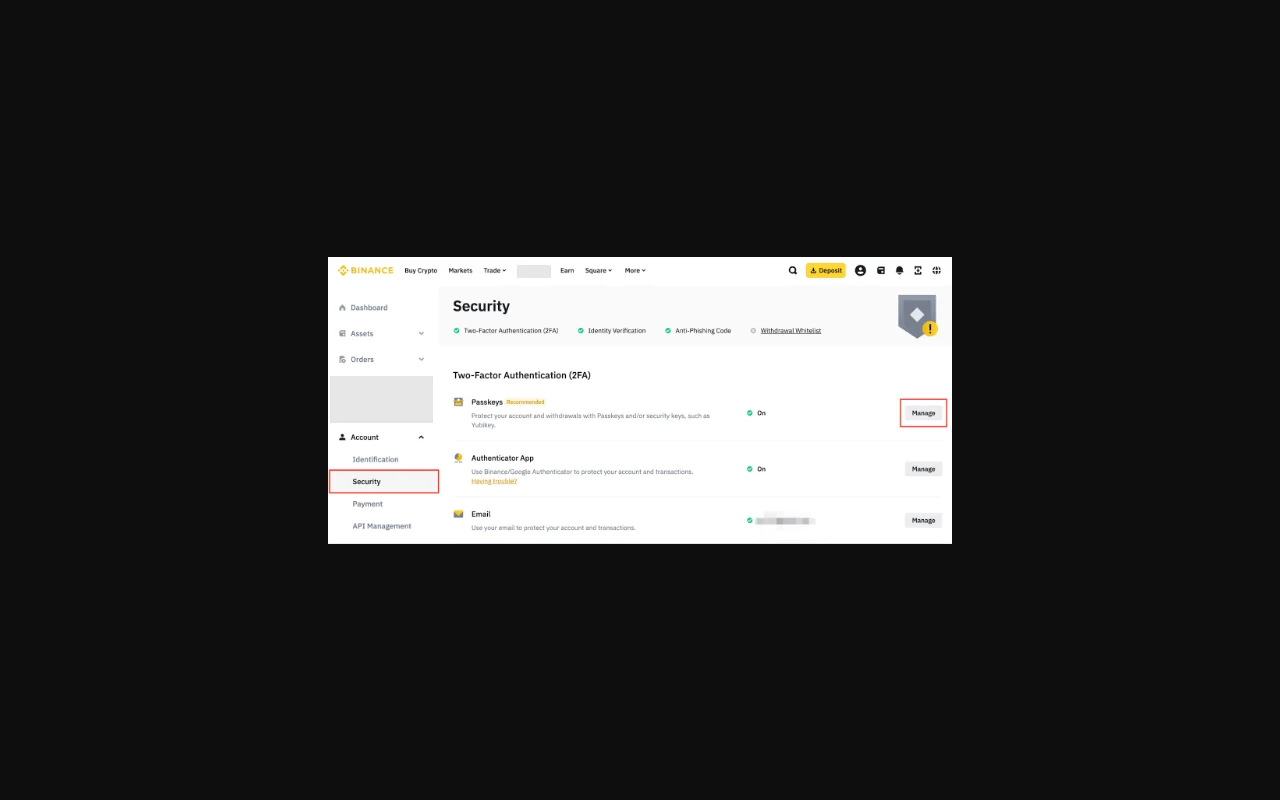
Real interface screenshot from Binance's official passkey tutorial. Account data is masked. Do not publish your own Security screen, passkey prompt, email, phone number, or device details.
Open Account → Security and compare the options actually available:
| Method | Strength | Main limitation |
|---|---|---|
| Passkey or hardware security key | Bound to the legitimate site origin and resistant to ordinary phishing | Depends on device, OS, browser, and storage or sync method |
| Authenticator app | Generates codes without the mobile network | Requires a secure recovery path if the device is lost |
| SMS | Better than a password alone | Exposed to SIM swap, interception, and delivery failures |
Binance's current passkey guide lists app 2.60 or above, iOS 16 or above, and Android 9 or above for the app flow. Support can change, so check the latest guide and your live page. On supported browsers, the website can create a passkey with a device password or biometric, a USB security key, or another device.
A passkey may sync across devices on the same Apple ID when created through iCloud Keychain, while another creation method may save it only on the current device. Read the confirmation shown for your method. After setup, confirm the passkey status on Security and test a sign-in while a separate recovery method still works. Never remove the last working factor.
When setting up an authenticator, the QR code, setup key, and six-digit code are secrets. Enter them only on the official app or site. Do not screenshot them, store them in a public gallery, or send them to support. If SMS is currently the only second factor, add a passkey or authenticator before deciding whether SMS should remain as backup.
Step 3 Store recovery material safely
Recovery should survive the loss of the primary phone without placing every secret in one cloud album. Label and store authenticator setup keys, backup codes, and hardware-key details offline or in a protected password manager. Keep at least one recovery option independent of the primary phone.
Do not confuse exchange recovery material with a self-custody wallet seed phrase. Authenticator recovery rebuilds a login factor; a wallet seed phrase can directly control on-chain assets. Both are sensitive, but their roles and storage labels should remain separate.
Step 4 Enable an anti-phishing code
Open Security → Advanced Security → Anti-Phishing Code. Binance's current guide describes a 6–8 character code with the character mix validated by the form; follow the live validation if it differs. Avoid a name, birthday, phone suffix, or public nickname.
Binance says its genuine emails include the configured code after it is enabled. A missing or wrong code in an email is a strong warning, but a matching code is not absolute proof: messages can be forwarded and screens can be copied. An SMS should not be treated as verified merely because it displays similar text. Close the message and open Binance from a bookmark to inspect the claimed event. Never enter a password or OTP from an email link.
Treat the anti-phishing code as private. If it may have leaked, change it from Security and review both the registered email and account activity.
Step 5 Review devices and activity
Use Device and Activities, or the equivalent section displayed in your region, to inspect authorized devices and recent login time and IP. Remove devices you sold, lost, repaired, or no longer control. If something is unfamiliar, preserve only the evidence needed for support and mask email, IP, device identifiers, timing details, and balances before any public post.
Run this review quarterly and after changing phones, travelling, resetting 2FA, installing a browser extension, or authorizing a third-party tool. Enabling controls once does not reveal an already-authorized session.
Step 6 Constrain withdrawals and API access
Users who repeatedly withdraw to fixed self-custody addresses can evaluate Address Management and a withdrawal whitelist. Before saving an address, verify the asset, network, and every character and send a small test. A whitelist reduces the destination set; it does not eliminate malware, clipboard replacement, email compromise, or account-recovery abuse. Follow the waiting period and confirmation rules shown at the time.
An API key is not a beginner requirement. If there is no defined integration, do not create one. For existing keys, confirm that the third party is still needed, permissions are minimal, withdrawals are disabled unless absolutely required, trusted IP restrictions are applied where possible, and idle keys are deleted. Never put an API secret in chat, a screenshot, a form, or a public repository.
Incident and lost-device paths
The phone is lost but activity looks normal
From a clean backup device, open the official site and use a recovery method prepared earlier. If none works, use the official account-recovery flow. Do not allow a stranger to remote-control the device. Binance's BAuthenticator guide says withdrawals and P2P transactions may be disabled for 24 hours after changing the authenticator; the notice on your account controls the actual restriction.
An unknown device or security change appears
Secure the registered email first. From a clean device, remove unknown sessions, change the Binance password, and inspect passkeys, authenticators, API keys, withdrawal addresses, and transaction history. If compromise is confirmed, use the official Disable Account process and Binance support. Do not move assets to a stranger's “safe address” while the state is unclear.
Fake support demands urgent action
Stop. Do not share a screen, password, passkey prompt, six-digit code, setup key, API key, or seed phrase. Type the official Binance domain yourself or use a bookmark to reach Support. A request for crypto, tax, or an “unlock fee” through private chat is not an account-security procedure.
Completion checklist
- Binance and the registered email have different passwords; email 2FA and forwarding rules were reviewed.
- Security shows at least one strong authentication method and does not rely on SMS alone.
- Recovery material is protected and not concentrated on the primary phone.
- The anti-phishing code is enabled, and a matching code is not treated as a substitute for domain verification.
- Authorized devices and recent activity contain no unknown item; obsolete devices were removed.
- Fixed-address users evaluated a withdrawal whitelist and will test with a small transfer.
- No idle API key exists; necessary keys use least privilege and IP restrictions.
- You know how to disable the account and reach official support from a clean device.
If identity verification is incomplete, use the Binance KYC guide. For the full sequence, follow the Binance beginner roadmap.
Official sources and verification date
- Binance Academy seven-step account-security guide
- Binance passkey creation and management guide
- Binance anti-phishing code guide
- Binance BAuthenticator app guide
This article was checked against public official pages on 2026-08-27. Security features, waiting periods, labels, and support conditions vary by region, account, and version. Follow the live Security page. This guide cannot guarantee absolute account safety and is not investment, legal, or tax advice.