
Assets & Risk
How to Check a TxID on a Block Explorer and Read Each Field of a Transfer
Find the TxID in your Binance history, paste it into the explorer for the right network, and read status, confirmations, address, amount and fee — plus what only the platform can answer.
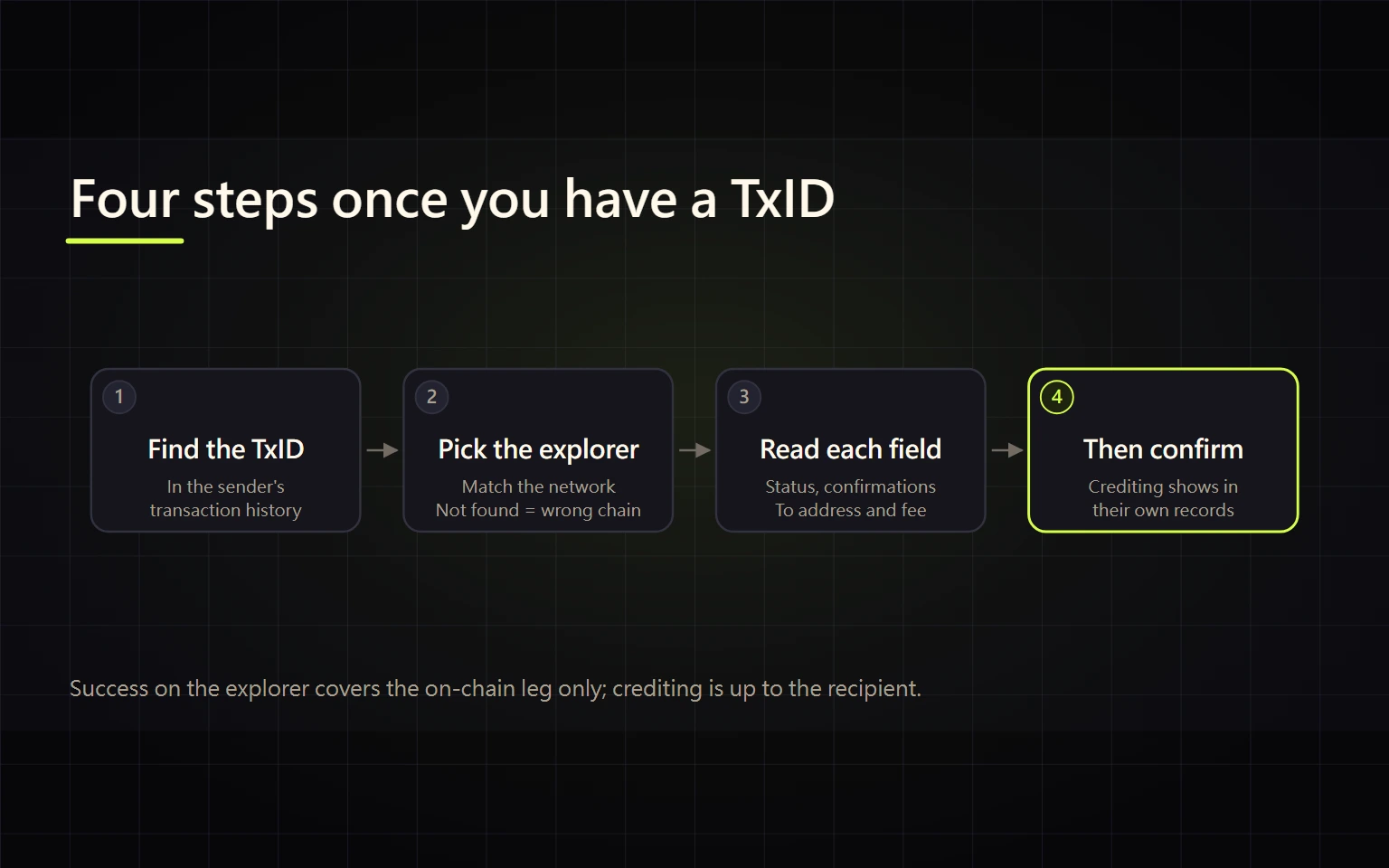
Once a transfer is sent, the one thing you usually have is a long string of letters and numbers: the TxID. It is the most reliable clue you have. Paste it into the right block explorer and you can see whether the transfer made it on-chain, which address it went to, what network fee was paid and how many confirmations it has. This guide covers where to find the TxID, which explorer to paste it into, and how to read each field on the transaction page.
What a TxID is and where to find it
Binance's help center defines a transaction ID (TxID), or transaction hash, as a unique string of characters given to every transaction that's verified and added to the blockchain. In practice: one on-chain transfer, one TxID, and anyone holding it can look up the same public record.
Look for the TxID on the side that sent the transfer:
- Withdrawing from Binance: on the website go to Wallet → Overview → Transaction History and check the TxID column of the withdrawal. In the app it's Assets → Spot → Transaction History; tap the transaction.
- Sending to Binance from another exchange or wallet: check the sender's withdrawal history or the wallet's transaction details. Binance may have no record of the transfer until it is credited.
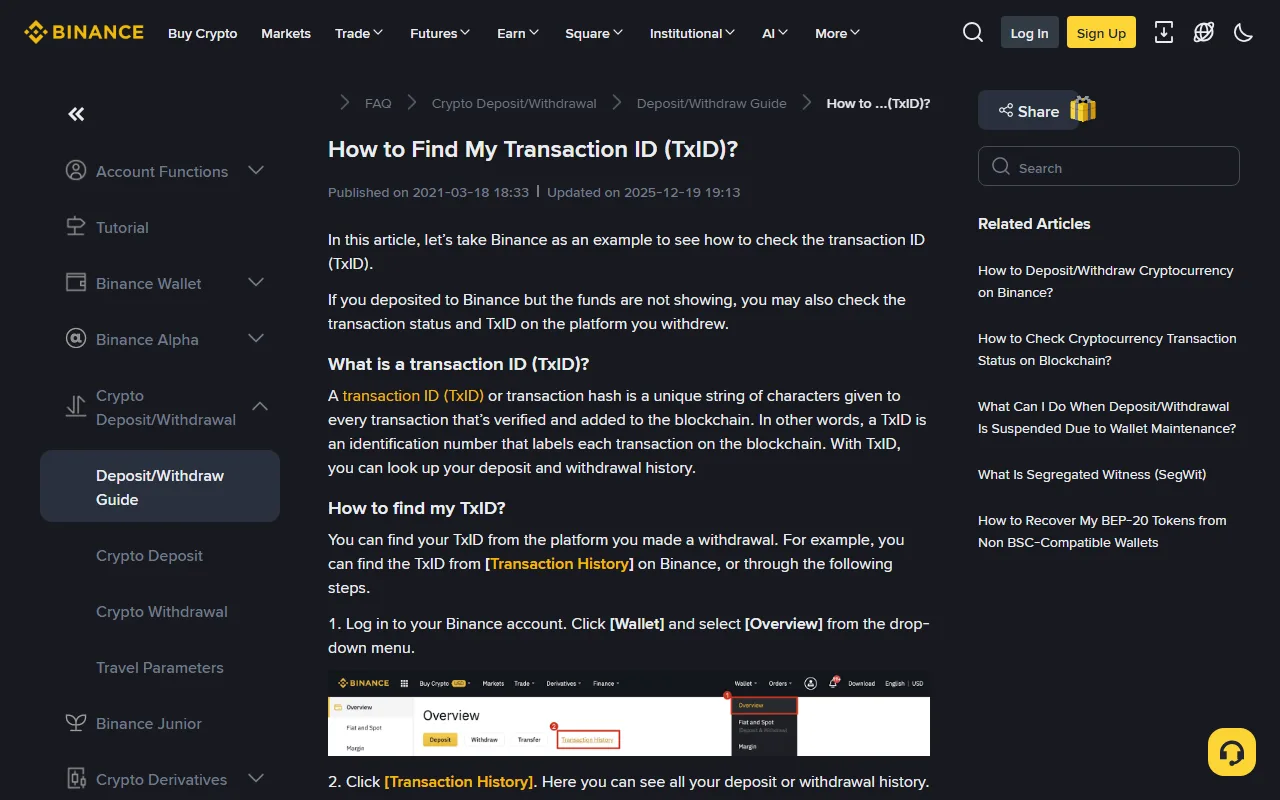
Source: Binance help center: How to Find My Transaction ID (TxID)?, captured 2026-10-19.
If the record only shows the platform's own order number and no TxID, the transfer usually hasn't been broadcast yet, or it was never an on-chain transfer in the first place. Internal transfers between accounts, for example, don't produce a public TxID. An explorer will find nothing in that case, so go back to the platform's status instead.
Which block explorer to use
A TxID only exists on the chain it belongs to. USDT sent over Ethereum, BNB Smart Chain or TRON travels on three different chains, and each has its own explorer:
| Network you chose | Common explorer |
|---|---|
| Bitcoin | mempool.space, blockstream.info |
| Ethereum (ERC20) | etherscan.io |
| BNB Smart Chain (BEP20) | bscscan.com |
| TRON (TRC20) | tronscan.org |
The easy route: click the TxID in your Binance transaction history. Binance's own guide notes that clicking it shows the transaction in the matching explorer, so there's no guessing.
If you paste it yourself and the explorer says "not found", the most likely cause is the wrong chain. Check which network the transfer used, then switch explorers.
How to read the transaction page
The example below is a public and well-known Bitcoin transaction — the 2010 payment of 10,000 BTC for two pizzas. Field names are similar across explorers.
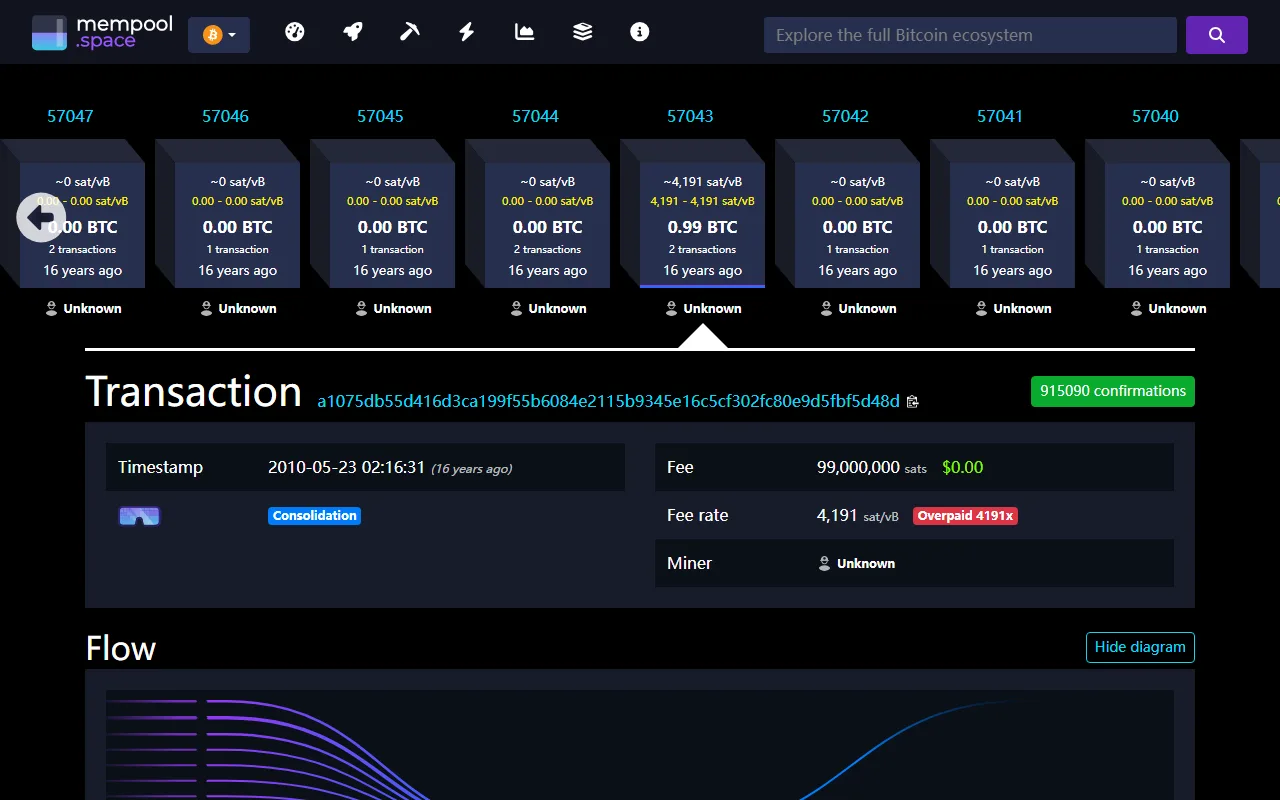
Source: mempool.space transaction page, captured 2026-10-19. The confirmation count keeps rising with every new block, so you'll see a bigger number.
Read these in order:
- Status: Ethereum-style explorers say Success, Failed or Pending; Bitcoin explorers show confirmed or unconfirmed. Until it's successful, there's no point chasing the recipient.
- Confirmations: how many blocks have been added after the block containing your transaction. It's the green badge in the screenshot. The higher the number, the harder the transaction is to reverse.
- Block and Timestamp: which block the transaction landed in and when. A pending transaction has no block number yet.
- From / To (or inputs / outputs): check that "To" is exactly the address you meant, especially the first and last few characters.
- Value: the amount actually moved.
- Fee: what was paid to the network. The example paid 99,000,000 sats (0.99 BTC), far more than needed when there was almost no competition for block space, which is why the explorer flags it as "Overpaid".
For USDT and other tokens, the amount is elsewhere
Etherscan groups transactions into three types: normal ETH transfers, internal transactions made through a contract, and ERC-20/ERC-721 token transfers. A USDT transfer is the third type. Its "Value" field usually reads 0 ETH, and the USDT amount appears under "ERC-20 Tokens Transferred". 0 ETH doesn't mean nothing was sent — but do check that the token contract and amount listed there are the ones you expected.
What an explorer can and can't tell you
| What you want to know | Explorer | Platform or wallet |
|---|---|---|
| Is it on-chain, successful or failed? | ✓ | |
| Recipient address, amount, network fee | ✓ | |
| Current number of confirmations | ✓ | |
| How many confirmations the recipient requires | ✓ (shown on its deposit page) | |
| Whether it's in your account balance | ✓ | |
| Risk checks, whether the memo was correct | ✓ |
"Success" on an explorer only means the on-chain leg is done. The receiving platform credits the deposit after its own confirmation threshold and checks on things like the memo or tag, so "successful on-chain, not in my account" is a normal in-between state. Binance's guide also notes that funds can take longer to arrive when the network is congested.
What to do after checking
- Explorer can't find it: confirm the chain first. If it's still missing, check the sender's status — it may still be processing, rejected or cancelled.
- Still pending: usually congestion or a low network fee. Wait; don't send a second transfer out of anxiety.
- Failed: the asset didn't reach the recipient, but the network fee is often still spent. Check the sending balance before deciding whether to resend.
- Successful but not credited: give the TxID, network, amount and time to the receiving platform's official support and ask them to trace it. The full process for stuck deposits is in our crypto deposit guide covering networks, memos and missing deposits.
- "To" isn't the address you intended: stop any further transfers and use address poisoning checks before a transfer to see whether you copied a look-alike address.
A TxID is public, and giving it to support is normal, but it links to your address and its full history. Think before posting it publicly — and never hand over a password, 2FA code or recovery phrase to anyone who says they need it "to check the TxID".
Before your next withdrawal, pair the Binance crypto withdrawal guide with a small test transfer, then verify it field by field using this page.
References
- Binance: How to Find My Transaction ID (TxID)?
- Etherscan Information Center: Understanding an Ethereum Transaction (transaction types and confirmations)
- mempool.space (Bitcoin block explorer)
Last checked: 2026-10-19.